
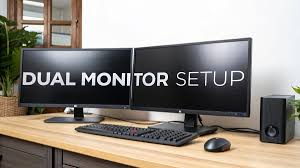
A dual monitor setup is no longer just for gamers or professionals—it’s becoming a mainstream productivity upgrade. Whether you’re a student, content creator, programmer, or office worker, adding a second screen can completely change how you work and play.
In this guide, we’ll cover the benefits of a dual monitor setup, how to set it up properly, and the common mistakes you should avoid.
🚀 Benefits of a Dual Monitor Setup
1. Increased Productivity
With two screens, you can multitask efficiently—keep your main work on one monitor while referencing documents, browsing, or chatting on the other. Studies suggest productivity can increase by up to 30%.
2. Better Multitasking
No more constant Alt+Tab switching. You can:
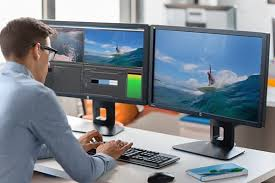
- Edit videos on one screen and preview on another
- Code on one screen and test on the other
- Attend meetings while taking notes
3. Improved Workflow for Creators
Designers, video editors, and streamers benefit massively:
- Timeline on one screen, preview on another
- Chat and stream controls separated from gameplay
4. Enhanced Gaming & Streaming
Gamers can:
- Play on one monitor
- Monitor Discord, OBS, or live chat on the second
5. Better Organization
You can dedicate each screen to a specific task, reducing clutter and improving focus.
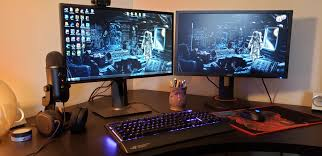
🛠️ How to Set Up a Dual Monitor System
Step 1: Check Your Hardware
Make sure your PC or laptop supports multiple displays:
- Look for HDMI, DisplayPort, USB-C, or VGA ports
- Most modern GPUs support at least 2 monitors
Step 2: Choose Your Monitors
You can:
- Use two identical monitors (best for symmetry)
- Mix different sizes/resolutions (works fine but needs adjustment)
Step 3: Connect the Monitors
- Plug each monitor into your PC
- Use HDMI/DisplayPort cables
- Turn on both displays
Step 4: Configure Display Settings (Windows)
- Right-click on Desktop → Display Settings
- Click “Detect” if second monitor isn’t showing
- Choose Extend these displays (important!)
- Arrange monitors by dragging them to match your physical setup
Step 5: Adjust Resolution & Scaling
- Set each monitor to its native resolution
- Adjust scaling (100–125%) for readability
💡 Pro Tips for a Better Setup
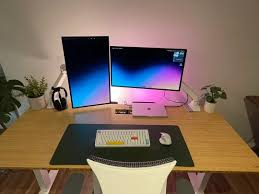
- Align monitors at eye level to reduce neck strain
- Use a monitor stand or arm for flexibility
- Keep the primary monitor directly in front of you
- Match brightness and color settings for consistency
⚠️ Common Mistakes to Avoid
1. Using “Duplicate” Instead of “Extend”
Many beginners accidentally mirror their display. This defeats the purpose—always use Extend mode.
2. Mismatched Monitor Heights
If one monitor is higher/lower, it can strain your neck over time. Keep them aligned.
3. Ignoring Cable Quality
Cheap or incompatible cables can cause:
- Flickering
- Lower refresh rates
- No signal issues
4. Poor Desk Setup
Not leaving enough desk space can make your setup uncomfortable and cluttered.
5. Not Adjusting Display Settings
Default settings may not be optimal. Always:
- Adjust resolution
- Set correct orientation
- Configure primary display
6. Overlooking GPU Limitations
Older PCs may struggle with:
- High-resolution dual displays
- High refresh rates
7. Inconsistent Refresh Rates
Using one 144Hz monitor and one 60Hz monitor can sometimes cause stuttering in certain setups.
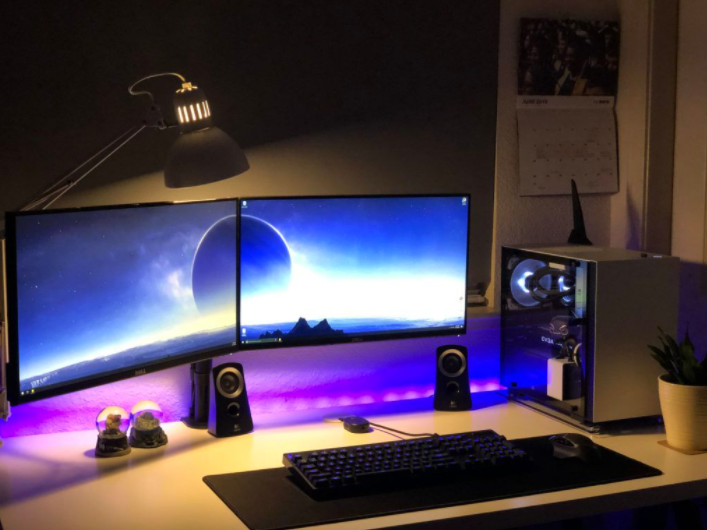
🎯 Is a Dual Monitor Setup Worth It?
Absolutely—if you spend a lot of time on your computer, a dual monitor setup is one of the best upgrades you can make. It boosts productivity, improves multitasking, and enhances your overall experience whether you’re working or gaming.
Final Thoughts
A dual monitor setup isn’t just about having more screen space—it’s about working smarter. With the right setup and a few adjustments, you can significantly improve your efficiency and comfort.
If you’re thinking about upgrading your workspace, this is one change you’ll notice immediately.