
Building your first PC might sound intimidating, but it’s actually one of the most rewarding tech projects you can take on. Not only do you save money compared to prebuilt systems, but you also gain a deeper understanding of how your computer works—and the flexibility to upgrade it later.
Let’s break it down step by step in a simple, beginner-friendly way.
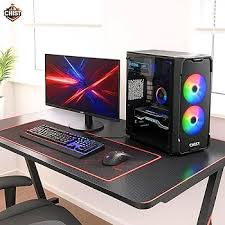
🧠 Why Build Your Own PC?
Before diving in, here’s why many people choose to build instead of buy:
- Customization – Pick exactly the parts you need
- Better value – No markup for prebuilt systems
- Upgrade flexibility – Easily swap parts later
- Learning experience – Understand your machine inside out
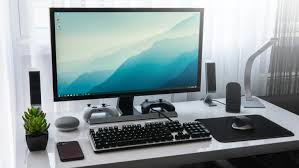
🧩 Core Components You’ll Need
Think of a PC as a team of parts working together:
1. CPU (Processor)
The brain of your computer. It handles instructions and calculations.
👉 Popular choices: Intel Core i5 / AMD Ryzen 5 (great for beginners)
2. Motherboard
The main circuit board that connects everything together. Make sure it’s compatible with your CPU.
3. RAM (Memory)
Used for multitasking and running applications.
👉 16GB is the sweet spot for most users today.
4. Storage (SSD/HDD)
- SSD: Fast, recommended for OS and apps
- HDD: Cheaper, good for large storage
👉 Tip: Go for at least a 500GB SSD to start.
5. GPU (Graphics Card)
Handles visuals and gaming.
👉 Optional if you’re not gaming (many CPUs have built-in graphics).
6. Power Supply (PSU)
Provides power to all components.
👉 Choose a reliable brand and enough wattage (500–650W for most builds).
7. Cabinet (Case)
Houses all your components. Choose one with good airflow.
8. Cooling System
- Stock CPU coolers are fine for beginners
- Extra case fans improve airflow
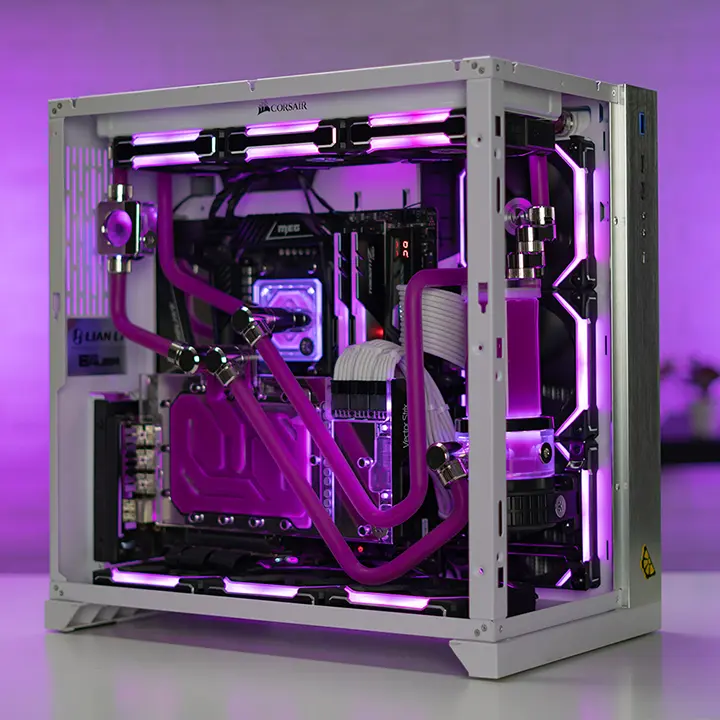
🛠️ Tools You’ll Need
- Screwdriver (usually Phillips head)
- Anti-static precautions (touch metal surface before handling parts)
- Clean workspace
🔧 Step-by-Step Assembly
Step 1: Install CPU on Motherboard
Carefully place the CPU into the socket—don’t force it.
Step 2: Add RAM
Insert RAM sticks into the correct slots (check motherboard manual).
Step 3: Install SSD
Mount your SSD (NVMe or SATA depending on your choice).
Step 4: Place Motherboard in Case
Secure it using screws and standoffs.
Step 5: Install PSU
Position it correctly (fan facing ventilation).
Step 6: Add GPU (if using one)
Insert into the PCIe slot and secure it.
Step 7: Connect All Cables
This includes:
- Power cables
- Front panel connectors
- Storage connections
👉 Take your time here—this is where most beginners get confused.
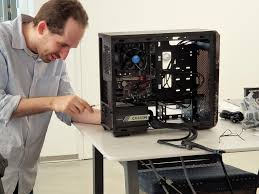
⚡ First Boot
Once everything is connected:
- Plug in monitor, keyboard, and power
- Turn on the PC
- Enter BIOS (usually pressing DEL or F2)
- Check if all components are detected
💿 Install Operating System
- Use a USB drive to install Windows or Linux
- Follow on-screen instructions
- Install drivers after setup
🚫 Common Beginner Mistakes
- Forgetting motherboard standoffs
- Not plugging in CPU power cable
- Using too much force on components
- Ignoring compatibility (CPU + motherboard + RAM)

💡 Pro Tips
- Watch a build video alongside your process
- Keep your motherboard manual handy
- Don’t rush—take it step by step
- Cable management improves airflow and aesthetics
🎯 Final Thoughts
Building your first PC isn’t just about saving money—it’s about control, learning, and satisfaction. The first time your system boots successfully, you’ll realize it was worth the effort.
Start simple, choose reliable parts, and don’t worry about making it perfect. You can always upgrade later—that’s the beauty of a custom-built PC.